Orders: from arrival to complete
How a typical inbound ticket moves from “customer at the scale” to a completed order — and what blocks Complete.
You are on the desk / yard PC in Orders unless noted. Tablets can advance floor work too — see Tablets & phones. Printing after complete may use a separate station — see Printing.
Before you start
- Confirm you are on the desk app, not a print-station login
- Know whether this ticket is new or continuing an open one
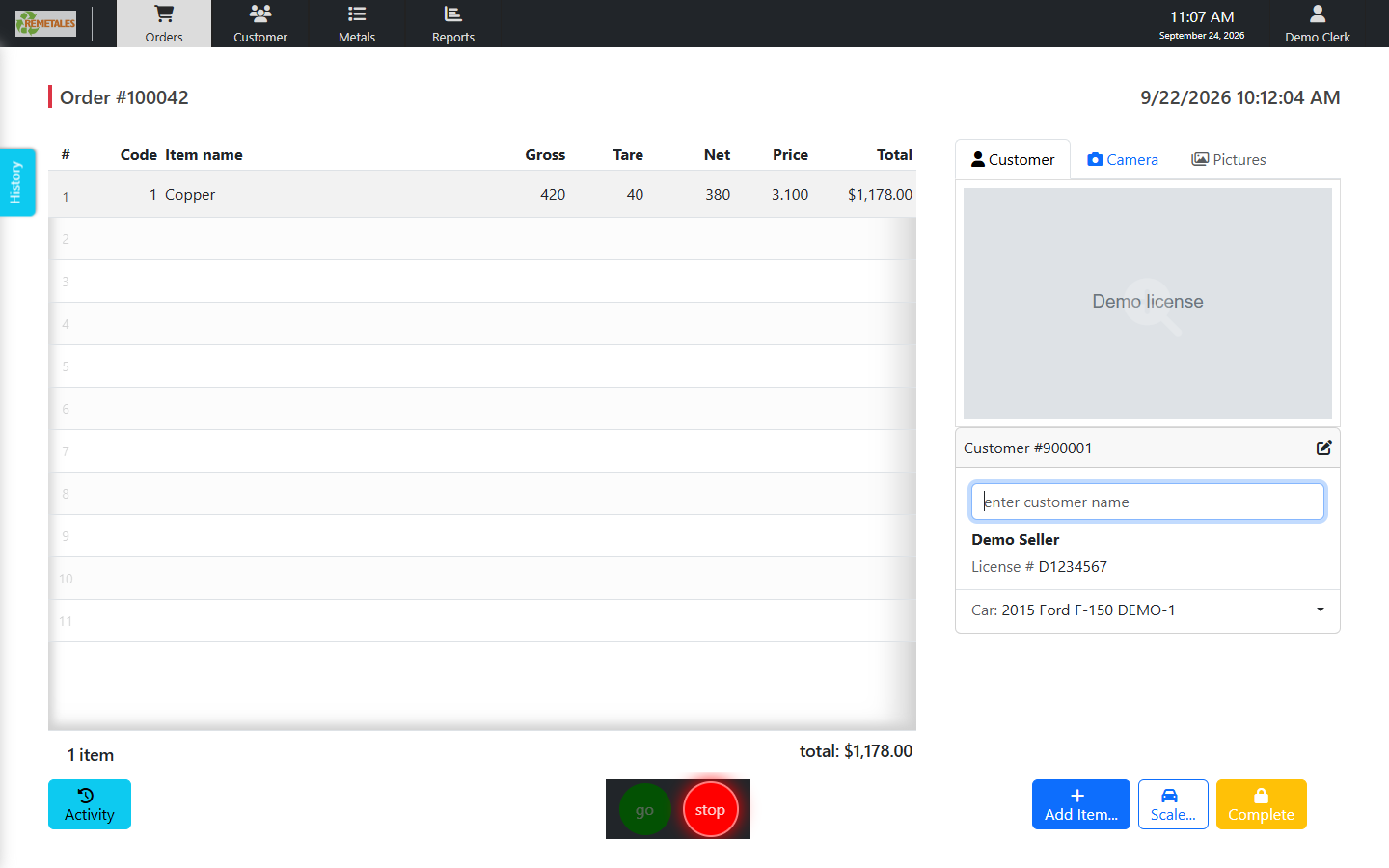
Figure A: Full order workspace — customer panel, lines, Complete.
Open or find an order
- Start a new inbound ticket, or open one already in progress
- Use history / lists to find recent open or completed tickets
- Avoid leaving half-finished tickets without a customer if your yard process requires a seller on every open ticket
Attach the customer and vehicle
- Search by customer name (not by internal ID)
- Select the vehicle that belongs on this ticket
- If the panel says the customer is not in the local list, do not force Edit — refresh/sync with whoever maintains station data, or pick another customer
- An expired license on the customer record will block Complete until the record is fixed
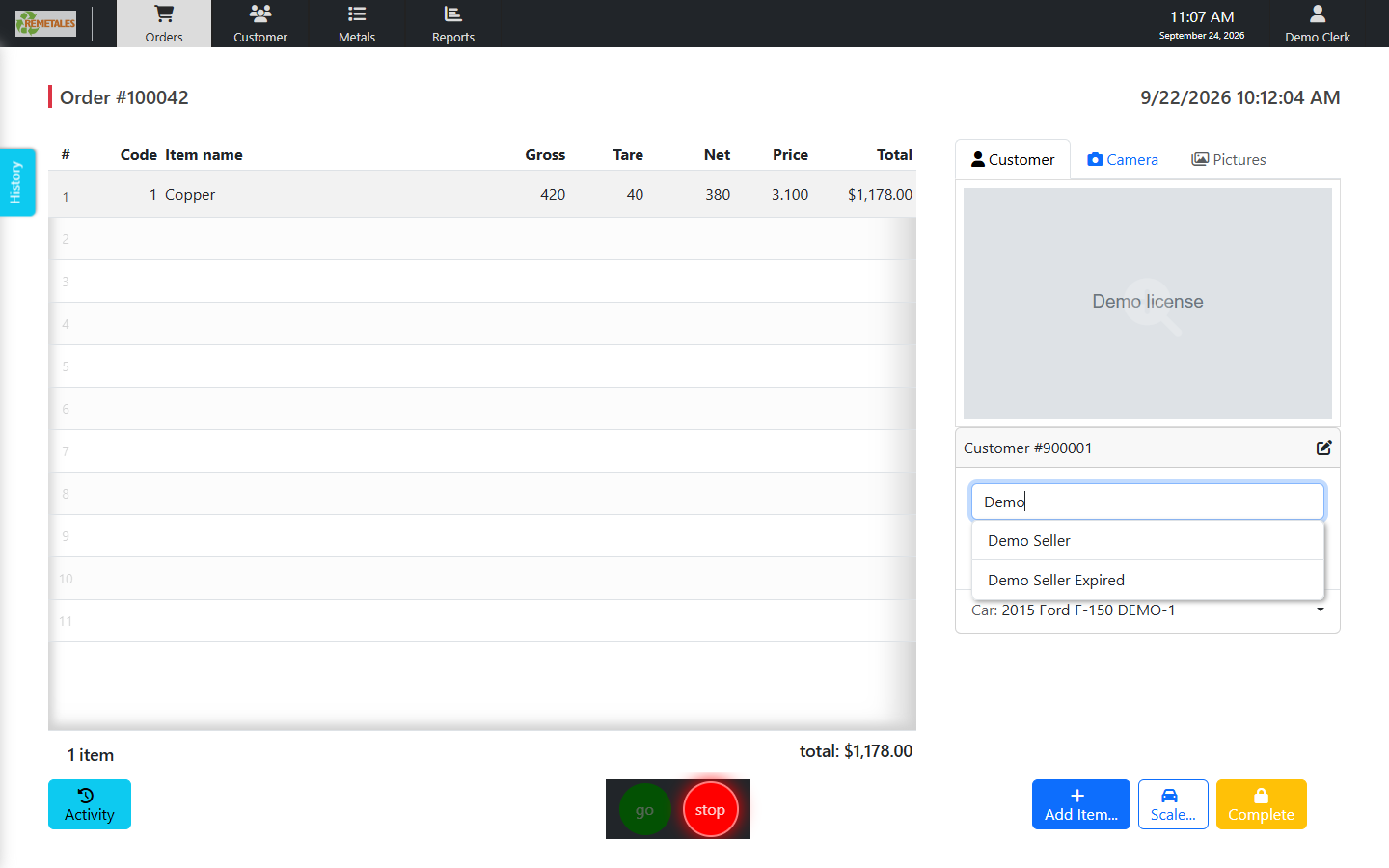
Figure B: Customer name search with suggestions.
Add material (Add Item)
- A material line needs item/code, weight (gross), and price before it counts toward Complete
- Add Item is for material lines — not the car-pass / passenger weigh flow
Use Scale for weigh / car pass
- Scale is separate from Add Item
- Keyboard shortcut: Ctrl+S opens Scale when the order is open (also available from order controls)
- First pass: inbound weigh and inbound passengers when it is a car pass
- Second pass: tare / outbound fields appear as the UI shows them
- Occupant counts are tracked separately from gross and tare — do not stuff headcount into the weight fields

Figure C: Order controls showing Add Item and Scale as distinct actions.
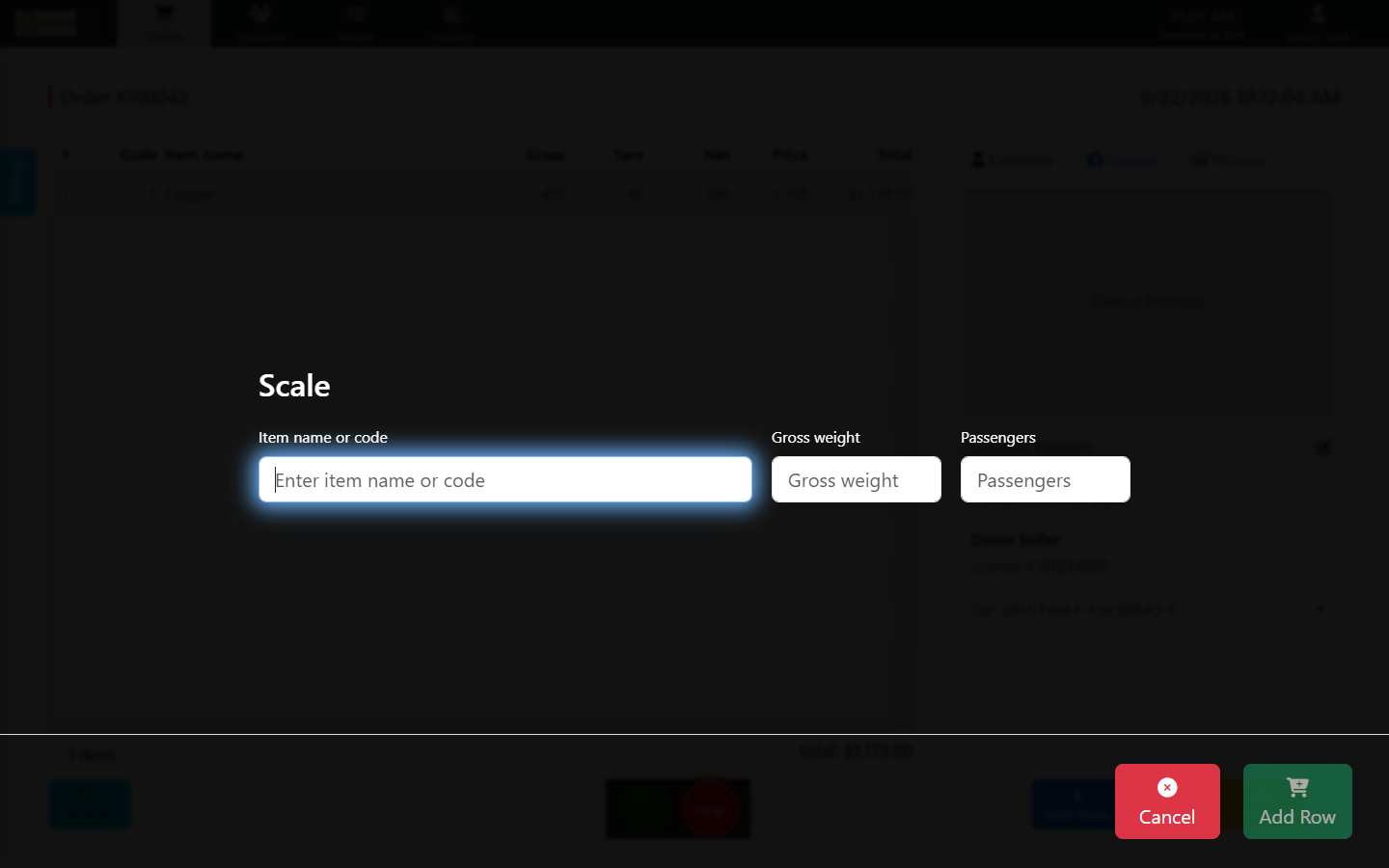
Figure D: Scale overlay with item, gross, inbound passengers; tare hidden on first pass.
More on lane behavior: Scale, weigh & traffic.
Traffic Go and Stop
- Go: the lane may show go; the system may try a scale-area picture, then continue even if the camera is slow
- Stop: cancels go / clears lane state as the lamps show
- Missing pictures occasionally should not block the lane forever — tell a manager if captures fail often
Complete the order
Complete stays unavailable until the ticket meets yard rules. Hover or focus the control — the tooltip names the real blocker.
| You see / feel | Usually means |
|---|---|
| No customer | Pick a customer |
| Customer not found | Record missing on this PC’s list |
| License expired | Update customer license dates |
| No vehicle | Select a car |
| No items | Need at least one complete line (code + gross + price) |
| Complete enabled | Customer OK, car OK, at least one good line |
After complete, a receipt may print here or queue to the receipt station.
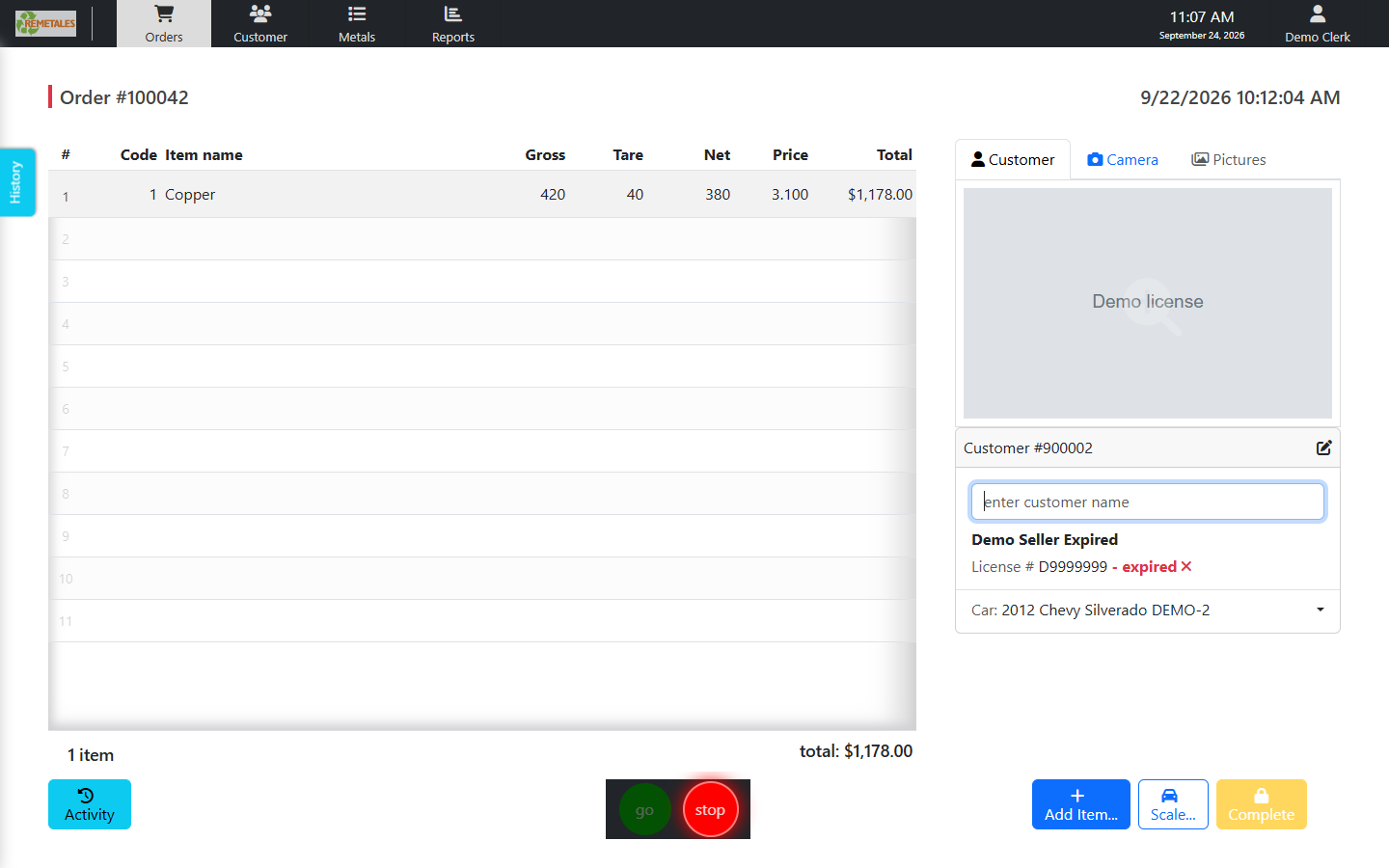
Figure E: Complete disabled with tooltip naming the blocker (for example license expired).
Pictures and evidence on the order
- Order Pictures can include stills from the ticket and, when a check was captured, related payment video
- Use for disputes and audit — authorized roles only
- Device admin: Cameras & video
Common questions
Why is Complete grayed out?
Trust the tooltip — it names the first blocker (customer, license, car, or items).
What’s the difference between Add Item and Scale?
Add Item = material lines. Scale = weigh / car-pass flow (passengers and driveway capture behavior).
Can I finish an order on a tablet?
Often yes for floor steps; your yard may still complete or print from the desk. See Tablets & phones and Printing.
Go didn’t take a picture — is that OK?
Go can still proceed if the camera does not confirm quickly. Report chronic misses to a manager.
Customer search won’t find someone I know exists.
Search is by name/description on this station’s list — check spelling, stale list, or whether they were never added.
Where do payments happen?
In Payments, which many clerks do not see. See Roles and Payments & checks.